 decky
Try the playground
Decky guide
How Decky’s MacBook notch music player works
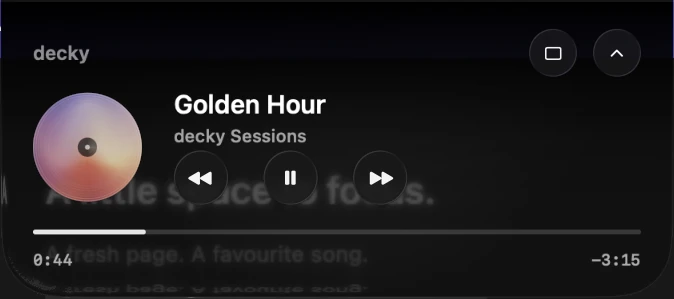
Decky puts your Mac’s playback controls beside the camera notch. The compact player shows the current artwork and lets you play, pause, or skip. Open it when you want to see the track name or move through a song.
Open the notch player
- Play a track in your usual music app. In Decky’s desktop player, open the options menu and select Move to Notch.
- Click the down arrow next to the playback buttons or hover over the compact player for two seconds to expand it.
- Use the timeline or turn the record to scrub if your music app allows seeking. Click the up arrow or press Escape to collapse the expanded player.
Move back to the desktop
Open the notch player and click the window icon to bring the sleeve back to the desktop. To let Decky choose for you, select Use Automatic Desktop / Notch from the player’s options. It shows the sleeve on your desktop and moves the controls up when you switch into another app.
Use it on a Mac without a camera notch
The compact player can also sit at the top of a screen without a notch. You can leave Decky on the desktop if you prefer the larger record and cover art. Both modes require macOS 26 or later.
Try the switch in your browser
In the Decky playground, choose a sample track, click Open an app, then expand the notch. If your own songs don’t appear in the Mac app, check your Mac’s Now Playing controls first.